
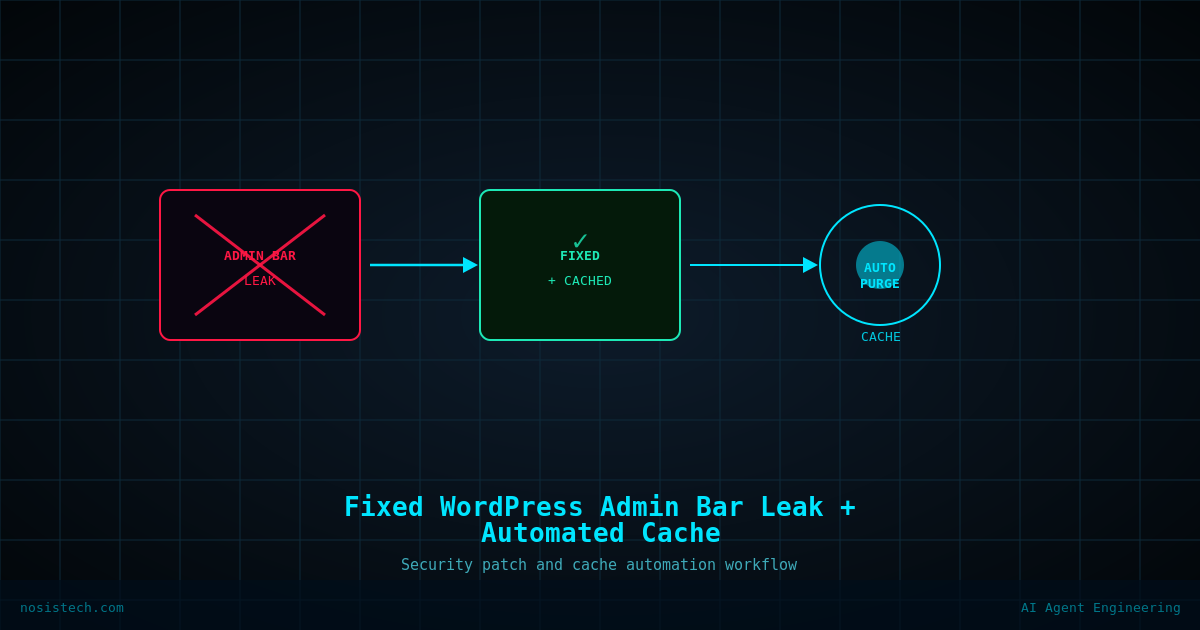
The black toolbar, complete with “Howdy” was showing up for guests in incognito mode, on mobile devices, and on browsers that had never even visited the site before.
Disclaimer: This article documents a personal technical experiment on my own infrastructure. The configurations, rules, and steps described reflect what worked in my specific environment and should not be treated as security advice, professional recommendations, or guaranteed protection against any threat. Every environment is different. Always validate independently, test in a non-production setting first, and consult qualified security professionals before applying any security-related configuration to production systems. NosisTech LLC accepts no liability for outcomes resulting from use of this content.
The Real Problem: It Was Never a WordPress Setting
The first instinct most people have, including mine, is to go to Users > Profile and uncheck “Show Toolbar when viewing site.” That box was already unchecked. It made no difference.
The second instinct is to assume it is a browser caching issue and test in incognito. Still showing. On a different phone that had never visited the site. Still showing.
This is what I later understood to be a “ghost cache” scenario. When you are running a stack that includes Hostinger’s built-in LiteSpeed Cache and Cloudflare as your CDN, you have multiple layers aggressively saving static snapshots of your pages to serve them faster. At some point, while I was logged into WordPress and browsing the front end, one of those layers captured a version of the page with the admin bar rendered in the HTML. It then distributed that snapshot globally. No WordPress setting change inside the CMS would fix it because the problem was not inside WordPress anymore. It was sitting in a cached HTML file on the server and on Cloudflare’s edge nodes.
Mistake 1: Trying to Fix It at the Settings Level
After confirming the toolbar box was unchecked, I wasted time clicking through various WordPress settings, checking user roles, and refreshing the page expecting something to change. It changed nothing because there was no longer a “live” page being generated. Visitors were receiving a pre-built HTML file that included the toolbar code.
What actually mattered in my case: I had to address the cache layers, not the WordPress settings.
The Fix: Kill It at the PHP Level First
Before touching any cache, the right move in my setup was to make sure the toolbar code never gets generated in the first place. I used the WPCode Lite plugin to inject a single PHP filter:
php
add_filter('show_admin_bar', '__return_false');- Snippet title: Disable Admin Bar Globally
- Code type: PHP Snippet
- Insertion: Run Everywhere
This tells WordPress at the application level to never render the admin bar HTML, regardless of what any database setting says. Even if the cache picks up a fresh snapshot afterward, there is nothing there to cache.
This should have been step one in my process. It was not, and that cost time.
Mistake 2: Purging in the Wrong Order
After adding the code snippet, the ghost bar was still showing. I cleared the LiteSpeed cache inside WordPress. Still showing. I did a hard refresh in Chrome. Still showing.
The problem was the purge order. With Hostinger and Cloudflare in the stack, there are three separate cache layers:
- LiteSpeed Cache (inside WordPress, managed by the plugin)
- Hostinger’s Object Cache (Redis, managed at the hPanel level)
- Cloudflare’s Edge Cache (distributed globally, managed from the Cloudflare dashboard)
I was only clearing layer one. Cloudflare was still serving the ghost version to anyone outside my local network.
Correct purge order in my setup:
First, purge LiteSpeed from within WordPress. Then go to Hostinger hPanel, find the Cache Manager, and flush the Object Cache if it is enabled. Finally, go to Cloudflare, navigate to Caching > Configuration, and hit Purge Everything.
After doing all three in sequence, the admin bar was gone.
The Next Problem: Making It Permanent
Purging manually every time I make a site change is not a workflow. The goal was to connect LiteSpeed directly to Cloudflare so that any WordPress update automatically clears both caches simultaneously.
This is where I ran into the second major problem.
Mistake 3: Using the Global API Key
LiteSpeed Cache has a built-in CDN integration for Cloudflare, found under LiteSpeed Cache > CDN > Cloudflare. It asks for three things: your Cloudflare email, your API key, and your domain.
I used the Global API Key. This is the key that has full administrative access over your entire Cloudflare account, including DNS, SSL certificates, billing, and every domain under that account. Using it for a cache purge integration violated the Principle of Least Privilege immediately.
It also kept returning a “No available Cloudflare zone” error, which is a separate problem I will get to.
What I did instead: Go to Cloudflare > My Profile > API Tokens > Create Token. I used the permissions below:
- Zone: Cache Purge (Edit)
- Zone: Zone (Read)
- Zone Resources: Include > Specific Zone > your domain
This creates a token that can only clear the cache for that one domain and nothing else. In my assessment, if it were ever leaked or compromised, the potential damage radius would be significantly more limited than with a Global API Key.
Critical detail: When using a scoped API token rather than a Global Key, you must leave the Email Address field in LiteSpeed completely blank. Providing an email causes an authentication failure. Tokens authenticate on their own.
Mistake 4: Putting the Zone ID in the Domain Field
The “No available Cloudflare zone” error persisted for several attempts because I was pasting the Cloudflare Zone ID into the Domain field in LiteSpeed.
The Domain field expects the text name of your site, for example nosistech.com. LiteSpeed uses that string to query the Cloudflare API and retrieve the Zone ID itself. Putting the ID directly into that field confuses the lookup because Cloudflare receives a query for a domain that looks like 64b01009ab3f… and understandably cannot find it.
Correct LiteSpeed Cloudflare settings in my setup:
- Global API Key / API Token: your scoped token
- Email Address: leave this blank when using a token
- Domain: nosistech.com
Once I corrected those three fields and saved, the connection status returned “Communicated with Cloudflare successfully” and the integration went live.
The Final Architecture
Here is what the stack looks like now and what each layer does in my setup:
WPCode PHP snippet (layer 0): Prevents the admin bar from ever being written into the HTML. This is the last line of defense in my configuration and it never moves.
LiteSpeed Cache plugin: Manages local server caching, auto-purges on WordPress updates, and sends purge commands upstream to Cloudflare via the API token.
Hostinger Object Cache (disabled): When both Hostinger’s Object Cache and LiteSpeed are running simultaneously in my environment, they conflicted and caused API communication issues. Running LiteSpeed alone was cleaner for my setup.
Cloudflare Edge Cache: Receives purge signals from LiteSpeed automatically. A Cloudflare Cache Rule was also added to bypass caching for any request that carries a wordpress_logged_in cookie, meaning logged-in admins always see the live site without any cached version interfering.
The result in my setup is that any time a page is updated, LiteSpeed clears locally and sends an instruction to Cloudflare to clear from its global edge nodes. No manual intervention needed. And because the PHP snippet is in place at the code level, even if the cache picks up a fresh snapshot at the wrong moment, there is nothing there to cause the ghost bar problem again.
What I Would Do Differently
Run the PHP snippet on day one, before anything is cached. The unchecked profile checkbox is a WordPress UI feature that is not cache-aware. A code-level filter is.
Use a scoped API token from the beginning. The Global API Key is not appropriate for a single-purpose integration and it introduced unnecessary risk in my setup.
Purge all three cache layers in the correct order. LiteSpeed first, Hostinger Object Cache second, Cloudflare third. Purging only one or two of them did not solve the ghost cache issue in my environment.
Test with a device that has genuinely never visited the site. Your own browser has local cache that can mislead you into thinking the server-side problem is resolved when it is not.
Why This Matters Beyond the Aesthetics
An exposed admin bar is more than a cosmetic issue. It reveals that you are using WordPress, what your admin email address is, and that your caching configuration is either misconfigured or absent. For a site focused on AI governance and cybersecurity, that felt like a contradiction in the page header.
For my site, a clean public-facing setup with least-privilege API integrations and automated cache purging felt like a demonstration of the technical standards I write about — your priorities and context will differ.
Keep reading: Securing this website
Previous article: Cloudflare Cache Rules, WAF, and the REST API Leak I Almost Ignored
All articles: NosisTech Writing