
If you run a blog or a content site, you already know the frustration. You publish a post, you wait, and you wonder if Google even knows it exists.
Manually requesting indexing through Google Search Console works, but it is one more thing to remember on top of writing, editing, formatting, and publishing. I decided to automate it.
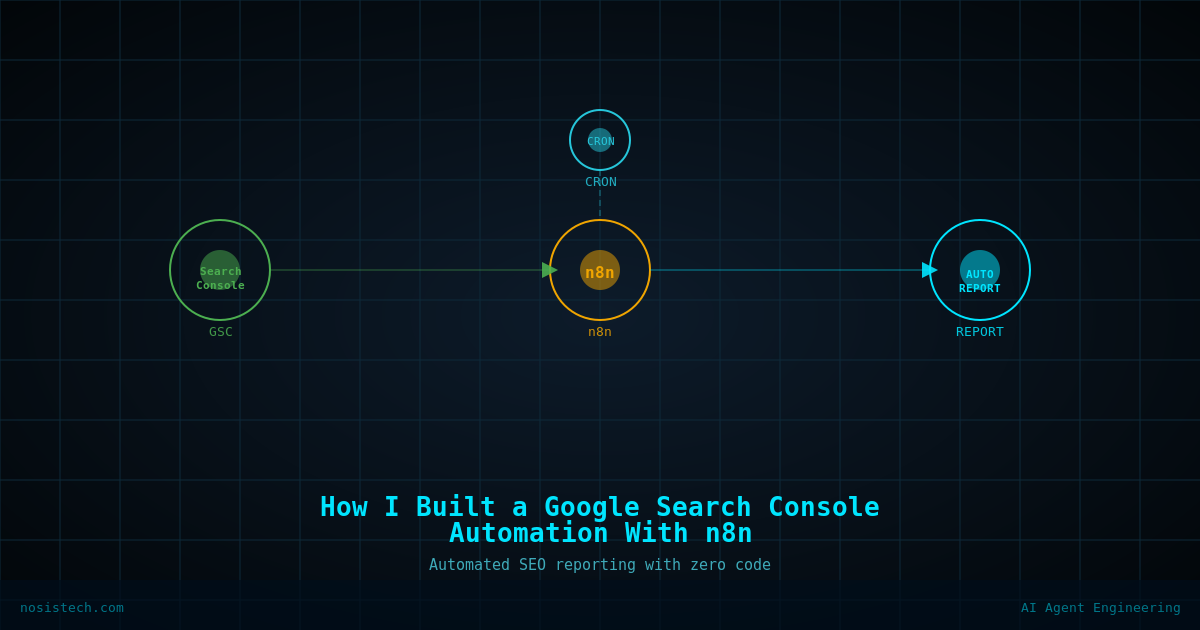
This post covers how I built a daily automation using n8n that pings my sitemap and sends me a Telegram confirmation every afternoon. I also had to fix an existing automation that had stopped working. Both are running 24/7 on a VPS. I will walk through the full build including every error I hit, because those are usually the most useful parts.
What I Was Starting With
I already had one n8n automation running on a VPS: a workflow that checks the Google Cloud certifications blog daily for exam discounts and sends me a Telegram notification with the result. It worked when I first built it, but I woke up one morning with no notification. That was the starting point for this session.
I also wanted to build something new: an automation that pings Google with my sitemap every day so fresh content gets picked up faster.
Fixing the Workflow That Stopped Triggering
The first thing I checked was whether n8n was still running on the server. A quick command confirmed the container had been up for over 24 hours, so the process itself was not the problem.
The real issue was simpler. When I opened the n8n dashboard and looked at the workflow, the toggle was grey. It had deactivated itself. Zero production executions. The workflow existed but was never running.
This happens because of how n8n handles state when a Docker container restarts. By default, it does not preserve the active status of workflows across restarts. The fix is to pass two additional environment variables when you launch the container.
I stopped the existing container, removed it, and ran a new one with these two flags added:
-e EXECUTIONS_PROCESS=main
-e N8N_SKIP_WEBHOOK_DEREGISTRATION_SHUTDOWN=true
The first flag keeps workflow execution in the main process, which is more stable. The second prevents n8n from deactivating workflows when the container shuts down. After relaunching with these flags, I went back into the dashboard, reactivated the workflow, and confirmed it was running. Problem solved.
Building the GSC Sitemap Pinger
With the existing workflow fixed, I moved on to the new build. The goal was simple: every day at a set time, ping my sitemap so Google knows to come and look at it, then send me a Telegram message confirming it happened.
I created a new workflow in n8n and called it GSC Sitemap Pinger.
Node 1: Schedule Trigger
The first node is a Schedule Trigger. I set it to run once per day. The time required a quick conversion because the VPS runs on UTC and I am in Central America, which is UTC minus 6. So 3pm local time becomes 9pm UTC. I set the trigger hour to 21:00 and the minute to 0.
Node 2: HTTP Request (Fetch the Sitemap)
The second node is an HTTP Request that fetches my sitemap. The method is GET and the URL is my sitemap index. No authentication needed since it is a public file. This node confirms the sitemap is reachable before anything else happens.
Node 3: HTTP Request (Notify Google)
Here is where I hit the first real error.
My original plan was to use the classic Google ping endpoint, which sends a notification to Google that your sitemap has been updated. When I tested the node, it failed immediately with a 404 error and a message I was not expecting:
Sitemaps ping is deprecated.
Google shut down that endpoint in 2023. Any tutorial or guide you find online that tells you to use that URL is outdated. It no longer works.
The fix was straightforward. Instead of pinging a dead Google endpoint, I simply fetch the sitemap a second time. This does two things: it confirms the sitemap is live and accessible, and it generates a fresh request that crawlers can detect. I updated the URL in the second HTTP Request node to point to my sitemap again, and moved on.
Node 4: Telegram
The final node sends me a confirmation message on Telegram. I reused the same credentials and chat ID from my existing workflow, which made setup fast.
This is where I hit two more errors back to back, and both are worth knowing about if you are building Telegram nodes in n8n.
The first error came from using an emoji in the message text. The checkmark emoji at the start of the message triggered a bad request error from Telegram. I removed it and tested again.
The second error was more specific. The message included my sitemap URL, which contains an underscore in the filename. Telegram’s default message parser treats underscores as markdown formatting, so it tried to parse part of the URL as italic text, failed to find a closing underscore, and threw a parse error with a byte offset reference.
The fix was to go into Additional Fields on the Telegram node, add the Parse Mode field, and set it to HTML. HTML mode does not treat underscores as special characters, so the URL renders correctly as plain clickable text.
After both fixes, the message came through cleanly.
The Final Flow
The complete workflow has four nodes connected in sequence:
Schedule Trigger fires at 3pm Central American time every day. It passes to the first HTTP Request, which fetches the sitemap and confirms it is live. That passes to the second HTTP Request, which fetches the sitemap again to generate a fresh crawler signal. That passes to the Telegram node, which sends a confirmation message with the sitemap URL and the local time.
The whole thing runs in under 40 seconds and requires no manual input after publishing.
What I Learned
Three things stood out from this session.
First, always check whether your workflow is actually active before debugging anything else. A grey toggle is invisible until you know to look for it, and it will waste your time if you start investigating the wrong layer.
Second, the Google sitemap ping endpoint is dead. If you are building anything that tries to use it, remove that node and replace it with a direct sitemap fetch. It achieves the same goal without depending on an endpoint that no longer exists.
Third, Telegram is stricter about message formatting than most people expect. If your message contains underscores, asterisks, or other characters that overlap with markdown syntax, set Parse Mode to HTML or your messages will fail silently or throw confusing errors.
Both workflows are now running daily without any manual input.
Keep reading: n8n automations
Previous article: From Laptop to Cloud: Migrated My Discount Monitor to a VPS
All articles: NosisTech Writing