
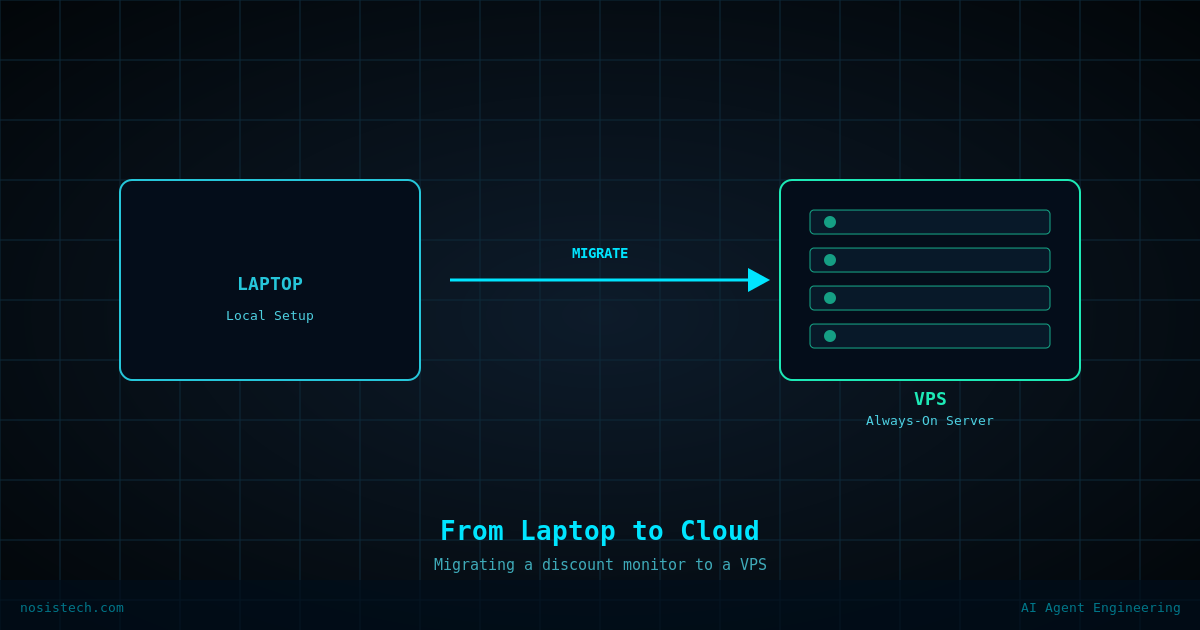
A few days ago I built a simple but useful automation: an n8n workflow that checks the Google Cloud certifications blog every morning .
It uses a local AI model to detect any exam discounts or promo codes, and sends me a Telegram message with the result. No more manually checking. No more missed deals.
It worked. Until it did not.
What I Built and Why It Stopped Working
The original workflow lived on my laptop running Windows. The stack was simple: n8n installed via npm, Ollama running locally with the gemma3:12b model, and a Telegram bot to deliver the results. I installed n8n as a Windows background service using a tool called NSSM so it would run automatically.
One morning I woke up and had no Telegram notification. That is when the troubleshooting began.
Mistake 1: Diagnosing the Wrong Machine
My first instinct was to check my Hostinger VPS, where I also have Open WebUI and Ollama installed. I opened Open WebUI on my phone, picked the smallest model available (llama3.2:1b), and started asking it to run system commands.
The model happily returned outputs. Disk usage. RAM stats. File listings. It even told me there were desktop applications like Adobe Acrobat, GIMP, and Microsoft Office taking up gigabytes of space.
None of it was real.
Here is the key lesson: a local AI model running in a chat interface has no access to your actual system. It cannot run commands. It predicts what the output of a command might look like based on its training data. I spent significant time analyzing completely fabricated system information.
The correct approach, always, is to open a real terminal first. On Hostinger that means going to hPanel, clicking Manage on your VPS, and using the browser-based terminal where you see your actual server prompt. Only then do you have real data.
Mistake 2: The Windows Service Setup
Back on the Predator, the real issue was that NSSM had installed n8n as a Windows service but it was set to Manual startup instead of Automatic. The service existed but never started when the laptop booted.
When I tried to fix it by setting the service to run under my user account, I hit another wall. My Windows account is linked to a Microsoft account and uses facial recognition and a PIN, no traditional password. NSSM requires a password to run a service under a specific user account, and Microsoft accounts cannot authenticate Windows services the same way local accounts can.
I tried resetting my password, used the wrong credentials, changed the password again, and eventually got the service to attempt a start, only for it to fail due to logon errors every time.
Why I Decided to Move to the VPS
At that point I had two choices: keep fighting Windows service permissions, or move the workflow somewhere it would just work.
The VPS made more sense for several reasons. A laptop gets turned off, goes to sleep, and is not designed to run background services reliably. A VPS runs 24/7 with no interruptions. Hostinger’s KVM 2 plan gives me 8GB RAM, 96GB disk, and 12 CPU cores, more than enough for a lightweight automation workflow. The disk was only 37% used and RAM was at 19% after I cleaned up some unused Docker containers. There was plenty of room.
The decision was straightforward: stop fighting the laptop and use the infrastructure I was already paying for.
Cleaning Up the VPS First
Before installing anything new, I ran a full audit of what was already on the VPS. Here is the command I used to check everything at once:
df -h / && echo "---RAM---" && free -h && echo "---DOCKER---" && docker ps -a && echo "---VOLUMES---" && docker volume ls && echo "---IMAGES---" && docker images && echo "---DISK TOP10---" && du -sh /* 2>/dev/null | sort -rh | head -10What I found was that LiteLLM, a tool I had set up three months ago to route AI requests, had crashed two months prior and was never cleaned up. Its container was stopped but its database (PostgreSQL) and monitoring tool (Prometheus) were still running and consuming resources.
I removed all three containers, deleted their storage volumes, and ran a Docker image cleanup:
docker stop litellm_litellm_1 litellm_db litellm_prometheus_1
docker rm litellm_litellm_1 litellm_db litellm_prometheus_1
docker volume rm litellm_postgres_data litellm_prometheus_data
docker image prune -a
That last command alone recovered 1.856GB of disk space from unused images. Always clean before you build.
Installing n8n on the VPS
With the VPS clean, installing n8n took one command:
docker run -d \
  --name n8n \
  --restart unless-stopped \
  -p 5678:5678 \
  --network host \
  -e N8N_SECURE_COOKIE=false \
  -e NODE_OPTIONS="--dns-result-order=ipv4first" \
  -v n8n_data:/home/node/.n8n \
  n8nio/n8n
A few things worth explaining :
-d means run in the background (detached mode). You get your terminal back immediately.
--restart unless-stopped means Docker will automatically restart n8n if the VPS reboots or if the container crashes. This is what makes it truly 24/7.
-e N8N_SECURE_COOKIE=false is needed because we are accessing n8n over plain HTTP (not HTTPS). Without this flag n8n refuses to load.
-e NODE_OPTIONS="--dns-result-order=ipv4first" forces the container to use IPv4 when connecting to external services like Telegram. Without this, the VPS tried to connect via IPv6 and timed out every time.
-v n8n_data:/home/node/.n8n creates a persistent storage volume so your workflows and credentials survive even if the container is restarted or updated.
Connecting n8n to Ollama
This was the trickiest part. n8n runs inside Docker, and Ollama runs directly on the VPS host. When n8n tries to connect to localhost:11434, it looks for Ollama inside its own container, where it does not exist.
The fix has two parts.
First, find the Docker bridge IP:
ip addr show docker0 | grep inetOn my VPS this returned 172.17.0.1. That is the IP address the container uses to reach the host machine.
Second, make Ollama listen on all network interfaces instead of just localhost:
sudo systemctl edit ollamaAdd these two lines in the editor that opens:
[Service]
Environment="OLLAMA_HOST=0.0.0.0"
Then restart Ollama:
sudo systemctl daemon-reload
sudo systemctl restart ollama
After that, setting the Ollama credential in n8n to http://172.17.0.1:11434 connected successfully. This change is permanent, Ollama will keep this configuration across reboots.
Choosing the Right Model
The original workflow used gemma3:12b on the Predator, which has an RTX 5070 Ti GPU. On a GPU, a 12 billion parameter model responds in seconds.
The VPS has no GPU. Everything runs on CPU. A 12B model on CPU is painfully slow for a simple classification task.
For this workflow, the AI only needs to answer one question: does this page mention a discount or not? That is a pattern recognition task, not a reasoning task. The smallest capable model wins.
On the VPS I switched to llama3.2:3b. At 3.2GB it loads faster, runs faster, and produces perfectly accurate results for this use case. Always match the model to the complexity of the task.
The Result
After all the fixes, the full workflow ran end to end in under two minutes and delivered this to my Telegram:
NO DISCOUNT FOUND
Simple. Clean. And now running every morning regardless of whether my laptop is on, off, or asleep.
Keep reading: n8n automations
Previous article: I Built a Local AI Discount Monitor with n8n, Ollama, and Telegram
Next article: How I Built a Google Search Console Automation With n8n
All articles: NosisTech Writing