
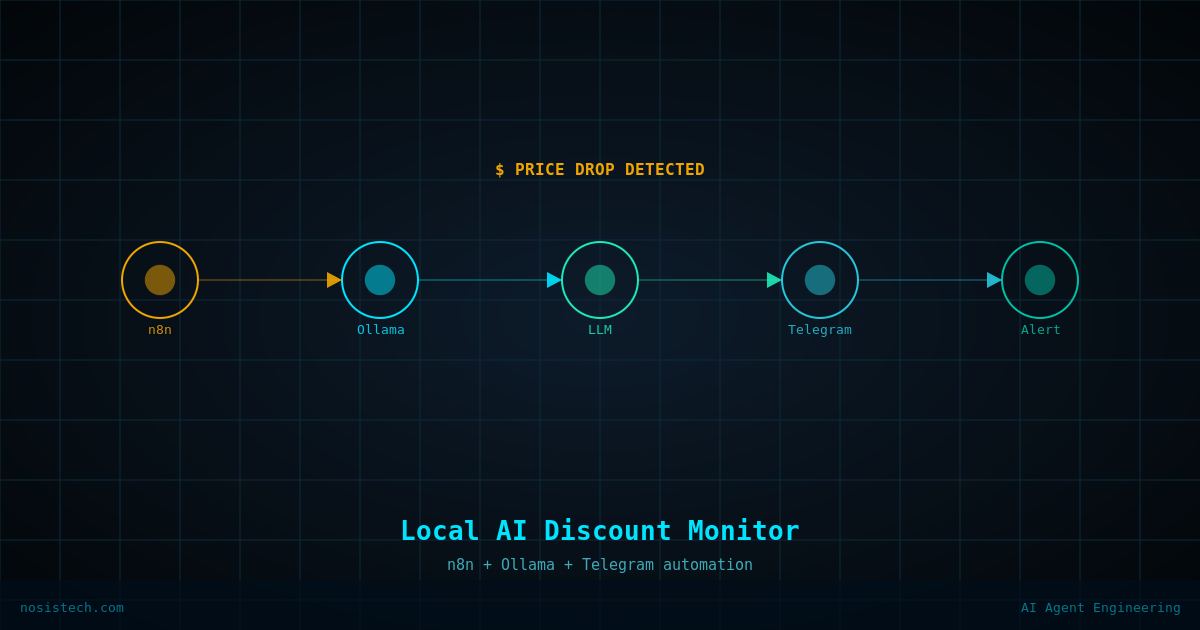
If you’re training your skills like I am, Google Cloud, you know the frustration: exam discounts appear without warning, last a few days, and vanish before you even find out they existed.
I got tired of manually checking the Google Cloud blog every day, so I automated it, using n8n, a local Ollama model, and Telegram. The whole thing runs on my Predator laptop, costs nothing, and now pings me automatically every morning.
What I Built and Why
The goal: Monitor the Google Cloud training and certifications blog daily. If a discount, promo code, or voucher appears, send a Telegram message instantly. If not, send a clean “NO DISCOUNT FOUND” confirmation so I know the system is running.
Why n8n? It’s the automation backbone of my AI Builder Roadmap, open source, self-hostable, and powerful enough to handle complex multi-node pipelines.
Why Ollama locally? I run a full local AI lab on the Predator (RTX 5070 Ti, 32GB DDR5). Using a local model means zero API costs, full privacy, and no rate limits. The model never leaves my machine.
Why Telegram? It’s instant, reliable, and I already have a bot set up. One message, one glance, done.
The Final Workflow Architecture
Schedule Trigger (9am daily)
    ↓
HTTP Request → GET https://cloud.google.com/blog/topics/training-certifications
    ↓
Code in JavaScript → Strip HTML, truncate to 3000 characters
    ↓
Message a Model → Ollama (qgemma3:12b) — classify: discount or not
    ↓
Send a Text Message → Telegram @bot
Five nodes. Runs in under 7 seconds. Fully local except for the HTTP request.
Building It: Step by Step
Step 1 — The Schedule Trigger
Set to fire daily at 9am. Straightforward — n8n’s Schedule Trigger node handles this natively.
Step 2 — HTTP Request Node
Fetches the raw HTML of the Google Cloud certifications blog page. No authentication needed, it’s a public page. This node worked first try.
Step 3 — The Code Node (Critical Fix)
This is where the first major problem appeared.
The mistake: Originally, the raw HTML from the HTTP Request went directly into Ollama. A full webpage is 50,000–100,000+ characters of HTML tags, scripts, navigation menus, and noise. Ollama was receiving all of it and timing out after 5 minutes trying to process it.
The fix: I added a JavaScript Code node between HTTP Request and Ollama. It strips all HTML tags using a regex replace and truncates the result to 3,000 characters — just the readable text content Ollama actually needs.
javascript
const html = $input.first().json.data;
const text = html.replace(/<[^>]*>/g, ' ').replace(/\s+/g, ' ').trim().substring(0, 3000);
return [{ json: { text } }];
This single addition dropped execution time from 5+ minutes (timeout) to under 30 seconds. Night and day.
Step 4 — Ollama Node
Connects to local Ollama at http://localhost:11434. This node sends the stripped text to the model with a classification prompt.
Model selection journey — and the mistakes:
I started with qwen36-tuned:latest, a large 35b model. Overkill for a task this simple. After the Code node fix brought time down to ~30 seconds, I switched to qgemma3:12b, the lightest model in my local library. Result: 6.8 seconds. A 10x improvement over the post-fix qwen36 time.
Lesson: Match model size to task complexity. A binary classifier that outputs one line does not need a 35b parameter model.
The prompt mistake: My first prompt was too open-ended — something like “analyze this page for certification discounts.” The model ignored the scraped content entirely and generated a long generic essay about how to find GCP discounts, sourced from its training data. Classic hallucination when the instruction doesn’t constrain the output format.
The fix: A strict, format-enforcing prompt:
You are a strict text classifier. Your ONLY job: check if the text below contains
certification exam discounts, promo codes, or vouchers.

Reply with EXACTLY one of these two responses and nothing else:
- DISCOUNT FOUND: [copy the exact discount text]
- NO DISCOUNT FOUND

Do not explain. Do not add context. Do not use markdown. One line only.

---
{{ $json.text }}
The --- separator between instruction and content helps the model distinguish the two. After this fix, the output was clean and deterministic.
The System role mistake: I tried to add a separate System message in the Ollama node (following standard LLM best practices). The n8n Ollama node only supports User and Assistant roles — no System role. The workaround is to prepend the system instruction directly into the User message, which works just as well for local models.
Step 5 — Telegram Node
The field name mistake: I set the Text field to {{ $json.response }} — which seemed logical. But Ollama’s n8n node outputs the result under content, not response. The Telegram messages were showing “undefined” until I corrected it to {{ $json.content }}.
Lesson: Always check the actual output JSON of a node before wiring it to the next one. Click the Output tab, look at the field names, then write your expressions.
The wrong node mistake: I also tried to put a formatted Telegram message template (with date and source URL) inside the Ollama node’s Content field. $json.content resolved as [undefined] there because the Ollama node doesn’t have access to its own output yet — it’s still generating it. The template belongs in the Telegram node, which receives Ollama’s output as its input.
Lesson: Expressions like $json.fieldName reference the incoming data to that node, not the current node’s own output.
Making n8n Survive Reboots – NSSM
n8n was running in a PowerShell window. That means closing the window or rebooting the laptop kills the workflow. Not acceptable for a daily monitor.
The fix: NSSM (Non-Sucking Service Manager) — a Windows utility that wraps any executable as a proper Windows service that starts automatically on boot.
powershell
# NSSM was already installed
nssm install n8n
# GUI opens — fill in node.exe path, startup directory, and n8n arguments
nssm start n8n
nssm status n8n
# Returns: SERVICE_RUNNING
After this, the PowerShell window was closed and n8n continued running. The workflow will now fire at 9am even after a reboot.
Results
| Metric | Before | After |
|---|---|---|
| Execution time | 5+ min (timeout) | 6.8 seconds |
| Telegram output | “undefined” / hallucinated essay | Clean one-line result |
| Uptime dependency | PowerShell window open | Windows service (always on) |
| Model used | qwen36-tuned:latest (35b) | qgemma3:12b |
What’s Next
This is v1.0. Planned improvements:
- Multiple sources: Add HTTP Request nodes for the GEAR program page and Google Cloud Next announcements — same Ollama classifier, more coverage
- Conditional alerting: Only send a Telegram message when
DISCOUNT FOUNDis detected — silence on clean days - n8n to Claude/Gemini memory sync
Key Takeaways
- Strip HTML before sending to a local model. Raw HTML will time out even fast models. A simple regex Code node is all you need.
- Match model size to task complexity. A 12b model outperforms a 35b model when the task is simple and speed matters.
- Constrain your prompts strictly. Vague instructions produce hallucinated essays. Format-enforcing prompts produce one clean line.
- Check field names in node output before writing expressions.
$json.responsevs$json.content— one works, one returns undefined. - n8n expressions reference incoming data, not current node output. Wire your templates to the right node.
- Install n8n as a Windows service from day one. NSSM takes 5 minutes and saves you from broken workflows after every reboot.
Keep reading: n8n automations
Next article: From Laptop to Cloud: Migrated My Discount Monitor to a VPS
All articles: NosisTech Writing