
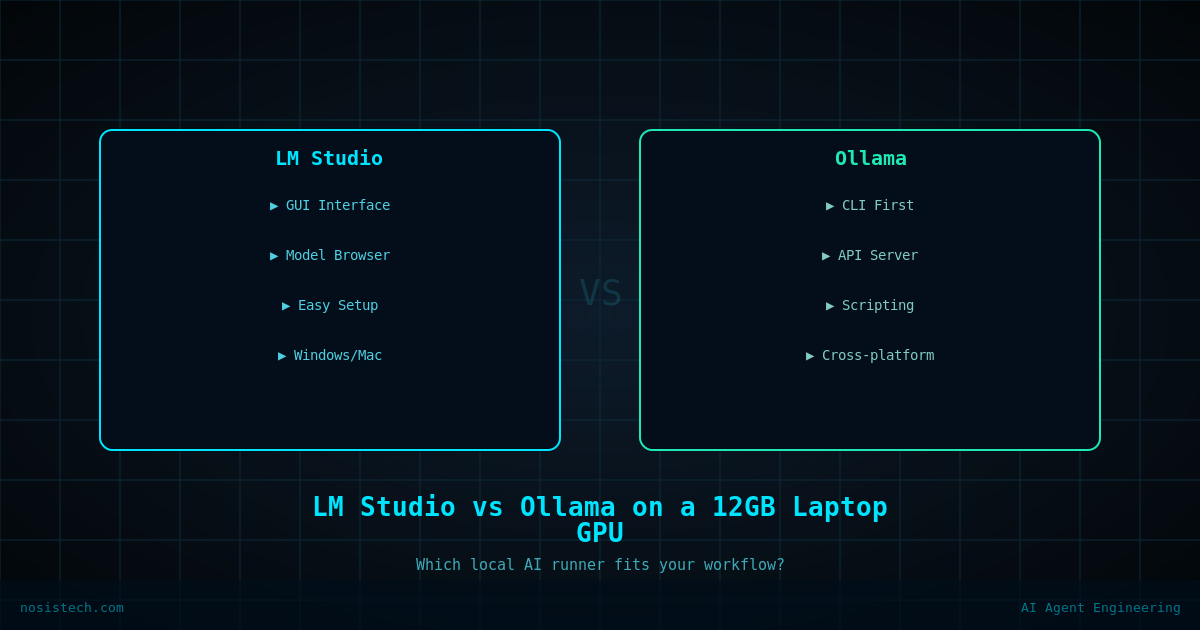
I have an Acer Predator Helios Neo 16S with an Intel Core Ultra 9 275HX, an NVIDIA RTX 5070 Ti with 12GB GDDR7 VRAM, and 32GB of DDR5 RAM running at 6400MHz.
Ollama is already installed with Open WebUI running locally. The model I used for every single test is Qwen3.6 35B-A3B at Q4_K_M quantization with about 20GB on disk.
That last detail matters a lot. The model is bigger than my VRAM. It doesn’t fully fit in 12GB, which means part of it always spills into system RAM. That’s the reality for most people running serious models on consumer laptop hardware, and it shapes everything that follows.
I also have a custom Qwen3.6 preset configured in Open WebUI with these parameters: context window 32,768, temperature 1.0, top P 0.95, top K 20, presence penalty 1.5, and max tokens 8,192.
The Test Prompt
I used the same prompt for every single test:
“Write a 1000 word technical governance framework for deploying agentic AI systems in regulated financial institutions, covering risk assessment, human oversight mechanisms, and compliance requirements.”
I picked this on purpose. It’s long, complex, requires structured reasoning. If a model is going to be useful for real governance work it needs to handle this kind of output without falling apart.
Ollama Results
Running with the verbose flag to get actual stats:
- Generation speed: 17.65 tok/s
- Tokens generated: 2,912
- Total time: 2 minutes 58 seconds
- Time to first token: 1.60 seconds
The output was good. The model thought through the framework properly, structured it well, and the governance content was usable. But nearly 3 minutes for a 1000 word document is slow when you’re trying to work.
LM Studio Default Results
Same model, same prompt, same machine, no settings changed from LM Studio defaults:
- Generation speed: 28.00 tok/s
- Tokens generated: 2,918
- Total time: approximately 1 minute 44 seconds
- Time to first token: 1.47 seconds
That’s a 58% speed improvement over Ollama. Same model, same hardware, different tool.
I also noticed something in Task Manager during this test. RAM was at around 93% utilization while VRAM was only at about 12-16% GPU compute. The model was living almost entirely in my DDR5 RAM, barely touching the GPU. That looked wrong to me, so I decided to fix it.
That decision cost me the next two hours.
The Optimization Attempts — Everything That Went Wrong
I want to document this because I couldn’t find anyone else writing about what actually happens when you try to manually optimize LM Studio on a 12GB laptop GPU.
First I tried aggressive settings. I set GPU offload to maximum layers, turned on Flash Attention, raised Evaluation Batch Size to 512, set context to 32,768, and enabled Unified KV Cache. My logic was that more GPU layers plus attention optimizations plus bigger batches should equal faster generation.
Result: 0.24 tok/s. The model became completely unusable. A response that previously took under 2 minutes was going to take over an hour. I cancelled it.
What happened was that pushing maximum layers onto a 12GB GPU that was already running a 20GB model created a memory traffic jam. VRAM hit 100%, RAM hit 98%, and Windows started quietly using my SSD as virtual memory. Everything collapsed.
I reset and tried a more conservative approach. GPU offload at 40 layers, batch size 128, Unified KV Cache off. Still bad, 4.24 tok/s. RAM was still at 96%, VRAM was full, and the model was choking on data transfers between RAM and GPU.
I went back to basics. GPU offload at 20 layers, batch size 128, both KV Cache toggles off. This time I got 25.55 tok/s, close to default but still not better.
At this point I accepted something that took me two hours to learn: LM Studio’s auto-detection had already figured out the optimal split for my hardware. Every manual adjustment I made either matched or degraded its automatic configuration.
The One Thing That Actually Worked
While going through the settings I found a toggle called Keep Model in Memory. The description says it reserves system memory for the model even when offloaded to GPU. I turned it off, reasoning that releasing that reserved RAM during generation might give the model more breathing room.
Result: 29.30 tok/s. A small but real improvement over the 28 tok/s default.
That’s it. After hours of testing, one toggle gave me 1.3 extra tokens per second.
Why RAM-Heavy Actually Makes Sense Here
After seeing Task Manager data across all these tests I understand now why LM Studio loads most of the model into RAM instead of VRAM on my machine.
My VRAM is 12GB and the model is 20GB. The GPU is fast but the moment VRAM fills up completely it creates a bottleneck, data has to constantly move in and out of that 12GB ceiling, which is slower than just leaving the model somewhere stable. My DDR5 RAM runs at 6400MHz with roughly 100 GB/s of memory bandwidth. It’s not as fast as GDDR7, but it has 32GB of space and no congestion.
LM Studio figured out that a slightly slower but uncongested highway handles 20GB better than a very fast but completely gridlocked one. Every time I tried to force more onto the GPU I was adding cars to a traffic jam.
Final Results
| Test | tok/s |
|---|---|
| Ollama default | 17.65 |
| LM Studio default | 28.00 |
| Aggressive optimization | 0.24 |
| GPU offload 40 layers | 4.24 |
| Conservative settings | 25.55 |
| Keep Model in Memory OFF | 29.30 |
What I Actually Use Now
For daily work on the Predator I run LM Studio with default settings and Keep Model in Memory turned off. Qwen3.6 35B-A3B gives me around 29 tok/s. The model uses thinking mode before answering which adds a few seconds to the first response but noticeably improves the quality of complex structured outputs.
When I need faster responses for quick tasks I switch to Qwen3 30B-A3B in Open WebUI which runs at around 41 tok/s and leaves more RAM headroom for other applications.
Ollama still runs in the background for API access via Open WebUI. Both tools coexist fine as long as you don’t run them simultaneously.
Conclusion: LM Studio is faster than Ollama on Windows with an NVIDIA RTX 5070 Ti laptop. Sometimes the best optimization is trusting the defaults and leaving things alone.
Keep reading: Local AI on a gaming laptop
Previous article: Qwen3, Sonnet, Opus, and Gemini Pro Compared
Next article: I Chose the Wrong Tool
All articles: NosisTech Writing