
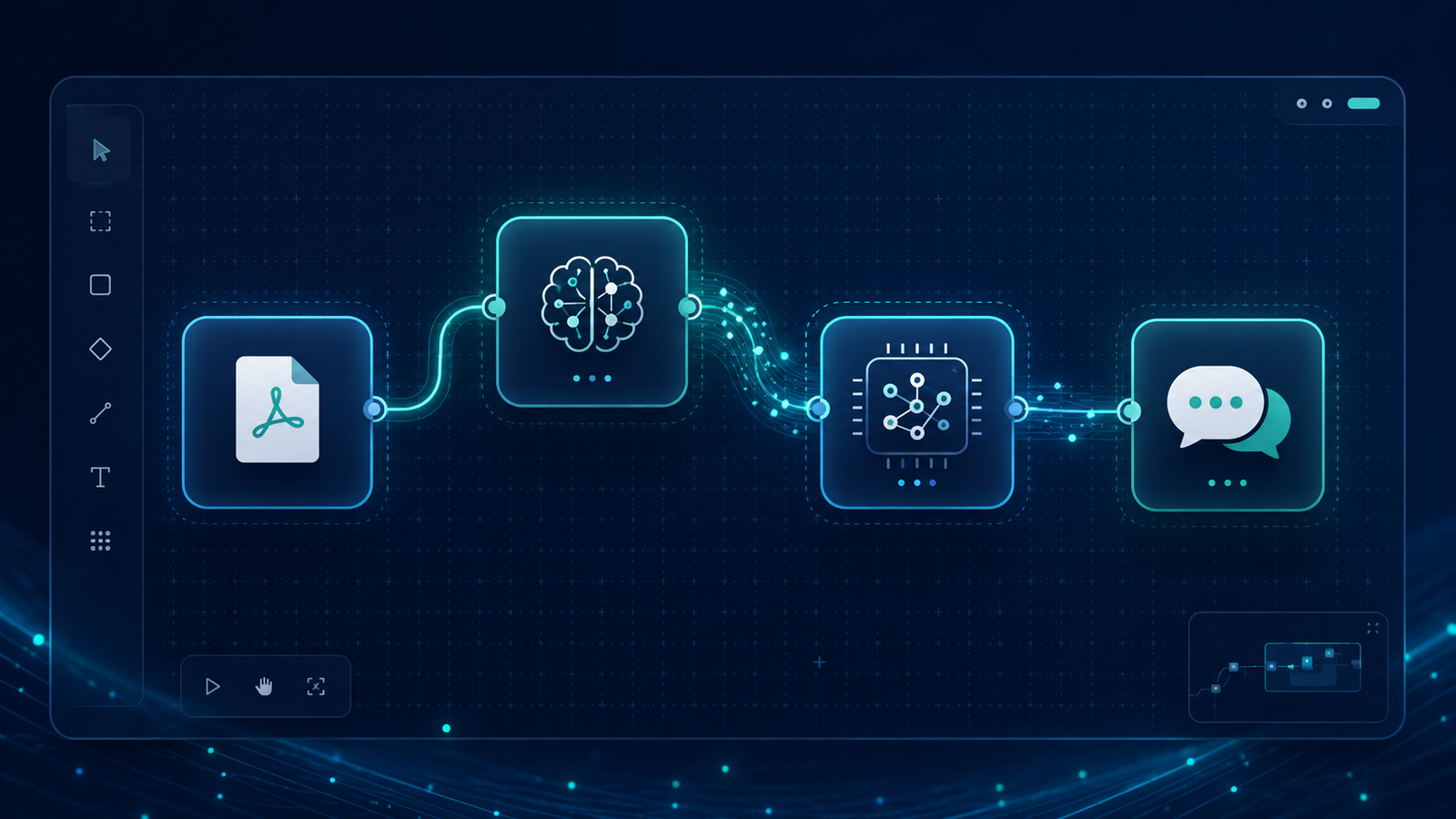
At some point, everyone asks the same question: I understand what AI agents do, but how do I actually build one without hiring a developer? Flowise is my answer to that question. It is a visual platform where you connect blocks together on a canvas and get a working AI agent at the end. No code. No terminal commands beyond the initial setup. Just drag, connect, configure, and run.
What This Agent Does
Flowise is not a single agent. It is a factory for building agents. You open a browser, log into a visual dashboard, and drag components onto a canvas the way you might arrange slides in a presentation. Each component represents a capability: one block reads PDFs, another stores and searches document content, another connects to an AI model, another chains everything together into a conversation.
The output of connecting those blocks is a working AI agent with a live API endpoint. That endpoint is a single URL your development team can drop into any website, mobile app, or internal tool to make the agent available to users.
For this demo I built a PDF knowledge agent. I uploaded a document, connected it to a vector store, linked that to a Gemini embedding model and a DeepSeek chat model routed through my LiteLLM proxy, and within minutes I had an agent that could answer questions about the document’s content. The agent correctly identified the title of the document without being told what it was. It retrieved that answer from the document itself, not from any general AI knowledge.
Why Build This
Most information about building AI agents is given assuming you know how to code, specially Python code. That is appropriate for developers. But there are founders, lawyers, doctors, architects, compliance professionals or any profession you can think of, many of whom will never open a code editor. I needed to document a tool that closes the gap between understanding what agents do and actually deploying one.
Flowise is that tool. It sits at the intersection of accessibility and real capability. The flows you build visually are powered by the same underlying technology as the coded agents in every other post in this series. The difference is that Flowise removes the barrier to entry entirely for the build phase, while still producing something you can deploy to production.
The Architecture: How It Works
Think of Flowise as a factory floor with four departments. Each department does one job. When you connect them in the right order, the factory produces intelligent answers from your documents.
The Visual Canvas
This is what you see in your browser. A grid where you drag blocks and draw connections between them. Each block is called a node. A node represents one capability: reading a file, storing data, calling an AI model, or managing a conversation. The connections between nodes are the instructions for how data flows from one capability to the next. You do not write those instructions in code. You draw them with your mouse.
The Document Layer
The PDF File node reads your document and breaks it into chunks. Think of this as a librarian cutting a long book into individual index cards, one card per page or section. Those cards are what the rest of the system works with.
The Memory Layer
The In-Memory Vector Store takes those index cards and converts them into a format a computer can search quickly. This uses a technology called vector embeddings, which translates text into numbers that represent meaning rather than just words. When you ask a question, the system converts your question into the same numerical format and finds the index cards whose numbers are closest to your question’s numbers. This is how the agent finds the right paragraph in a long document almost instantly, without reading every word every time.
The Google Gemini Embedding node handles this translation in my setup. It converts both the document chunks and the user’s questions into the numerical format the vector store uses for matching.
The Conversation Layer
The LiteLLM node connects to my model proxy, which routes requests to DeepSeek in my setup. This is the AI model that reads the matched document chunks and constructs a natural language answer. It does not answer from its own general knowledge. It answers from the specific chunks the vector store retrieved from your document.
The Conversational Retrieval QA Chain node is the coordinator. It receives the user’s question, sends it to the vector store to find relevant chunks, passes those chunks to the language model, and returns the answer to the chat interface.
The Model-Agnostic Layer
Every chat model call in my Flowise setup routes through LiteLLM. LiteLLM is a proxy layer that sits between Flowise and any AI provider. In my configuration, I can switch the active model from DeepSeek to Gemini Flash by changing one value in my LiteLLM configuration. The Flowise flow itself does not change at all. This is the same model-agnostic pattern used in every agent in this series.
The Build: Step by Step
Step 1: Install Flowise via Docker
Docker is a tool that packages software with everything it needs to run, so it works the same way on any machine. With Docker installed, one command pulls and starts Flowise:
docker run -d --name flowise -p 3000:3000 flowiseai/flowiseWhat this code is actually doing: it tells Docker to download the official Flowise package, run it as a background process named “flowise”, and make it available in your browser on a local port. After this command completes, opening your browser to localhost:3000 shows the Flowise dashboard.
Step 2: Create the Flow
In the Flowise dashboard, clicking Add New opens a blank canvas. From the node search panel on the left you drag four nodes onto the canvas: PDF File, Google Gemini Embedding, In-Memory Vector Store, and Conversational Retrieval QA Chain. A fifth node, LiteLLM, handles the chat model connection.
Step 3: Configure the LiteLLM Node
The LiteLLM node accepts three values: the base URL of your LiteLLM proxy, your LiteLLM API key, and the model name as configured in your LiteLLM setup. Once those are entered, Flowise routes all chat model calls through LiteLLM, which handles the actual provider connection. Swapping the AI provider requires changing only the LiteLLM configuration, not anything inside Flowise.
Step 4: Configure the Embedding Node
The Google Gemini Embedding node requires a Google API key entered directly. The Task Type field must be set to RETRIEVAL_DOCUMENT for document question-answering use cases. This tells the embedding model that its job is to prepare document content for retrieval, which improves the quality of matches when a user asks a question.
Step 5: Connect the Nodes
Connections are drawn by clicking the output dot on one node and dragging to the input dot on another. The flow in my setup runs in this order: PDF File feeds into In-Memory Vector Store as a document, Google Gemini Embedding feeds into In-Memory Vector Store as the embedding engine, In-Memory Vector Store feeds into the QA Chain as the retriever, and LiteLLM feeds into the QA Chain as the chat model.
Step 6: Upload a Document and Test
The PDF File node has an Upload File button. After uploading a test document and saving the flow, the chat interface opens with a text field. I asked the agent what the title of the uploaded document was. It returned the correct title from the document without being told what it was. The retrieval system found the relevant content and the language model constructed the answer.
What I Would Do Differently
The open-source version of Flowise stores all flows and data in a single shared database. In a production deployment serving multiple clients, this creates a data isolation problem. Client A’s documents and conversation history live in the same database as Client B’s. A production setup would require strict separation between clients so no data crosses boundaries.
The embedding node in my setup calls Google’s API directly rather than routing through LiteLLM. This is a limitation of how the Google Gemini Embedding node in Flowise handles authentication. A more complete model-agnostic setup would route embedding calls through LiteLLM as well, which would require either a custom Flowise node or a different embedding provider that accepts the OpenAI-compatible endpoint format.
The default Docker setup runs Flowise on a single container with no redundancy. Any restart of the container clears the in-memory vector store, which means uploaded documents need to be re-processed each time. A production deployment would replace the in-memory store with a persistent vector database that survives restarts.
What This Means
Flowise answers the question that everyone asks after understanding what AI agents can do: how do I build one without a technical team?
The answer is that you can prototype a working agent this afternoon. You open a browser, connect blocks, upload a document, and test it. The agent I built reads a PDF and answers questions about it. That same pattern applies to any document your business produces: contracts, policy manuals, product specifications, client briefs, compliance frameworks.
The API endpoint Flowise generates when you save a flow is a single URL. You hand that URL to any developer and they can embed the agent into your website, internal dashboard, or client portal in under an hour. You built the intelligence. They handle the integration.
What Flowise does not replace is the architecture thinking. Understanding which nodes to connect, which embedding model fits your use case, and how to configure a model-agnostic routing layer are decisions that require judgment. Flowise removes the coding barrier. It does not remove the need to understand what you are building and why.
Tools Used
- Flowise (Apache 2.0): github.com/FlowiseAI/Flowise
- LiteLLM (MIT): github.com/BerriAI/litellm
- NosisTech Agent Engineering : github.com/nosistech/agent-engineering
Keep reading in this series
Previous build: #5 Async Standup Summarizer: AI Team Reports Without Meetings
Next build: #7 PraisonAI: Building a Two-Agent AI Workforce
All 56 builds: 50+ Agent Patterns & Builds
(c) 2026 NosisTech LLC. Licensed under CC BY 4.0. Use freely, just credit us.